
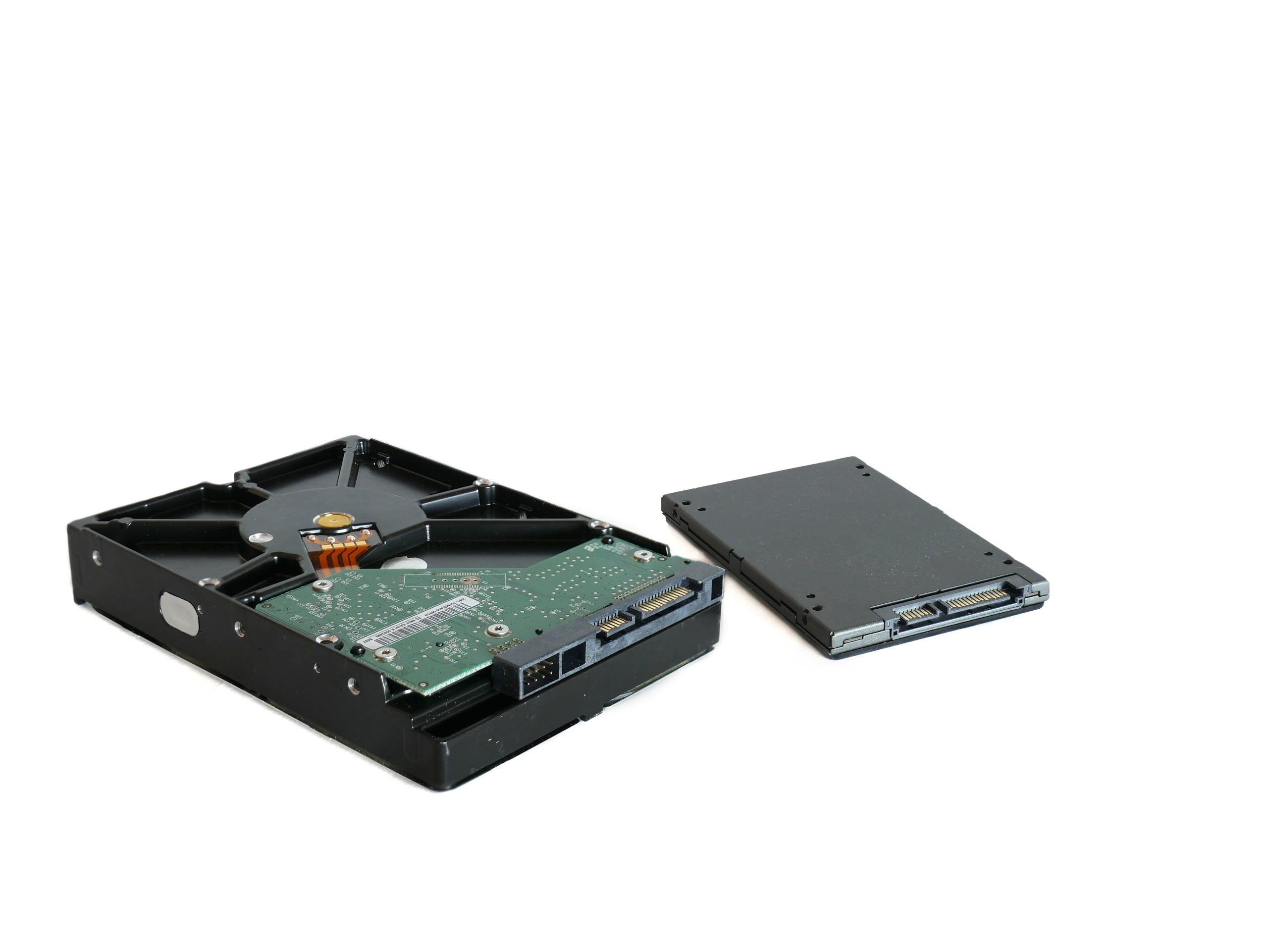
Two computers with the same processor and the same amount of memory can feel completely different in everyday use, and the reason is often the storage drive. A fast SSD makes Windows boot in seconds, applications open instantly and large files copy without a long wait, while an ageing hard drive can make even a powerful machine feel sluggish. The problem is that advertised drive speeds rarely tell the whole story. Manufacturers quote best-case figures measured under ideal conditions, but what matters is how your drive performs in your system, today. That is exactly what a benchmark tool measures, and it is the quickest way to find out whether your storage is healthy, correctly configured and performing as it should.
What Is CrystalDiskMark?
CrystalDiskMark is a free, lightweight disk benchmark utility for Windows, developed by Crystal Dew World. It has been a favourite of PC enthusiasts, reviewers and technicians for many years because it does one job extremely well: it measures the read and write speed of your storage drives quickly, clearly and without unnecessary clutter. The program works with traditional hard disk drives (HDDs), SATA and NVMe solid state drives (SSDs), USB flash drives, external drives and memory cards. It requires no technical background to run, yet its results are detailed enough to be trusted by hardware reviewers comparing drives side by side. Because it is free and takes only a couple of minutes to run, it is usually the first tool recommended when someone asks, “Is my drive actually as fast as it should be?”
What It Measures
CrystalDiskMark tests your drive by reading and writing test data in several different patterns, because a drive behaves very differently when copying one large video file than when opening hundreds of tiny files. The results are displayed in megabytes per second (MB/s), and the main tests are:
Sequential read and write (SEQ1M Q8T1 and SEQ1M Q1T1). Sequential tests read and write large blocks of data in order. These numbers represent best-case performance, such as copying a large file or loading a game level, and they are the figures manufacturers advertise. A modern NVMe SSD can reach several thousand MB/s here, a SATA SSD around 550 MB/s, and a mechanical hard drive typically 80–200 MB/s.
Random read and write (RND4K Q32T1 and RND4K Q1T1). Random tests use tiny 4 KB blocks scattered across the drive. This pattern matches real everyday work — booting the operating system, launching programs and loading small files — far more closely. The Q1T1 figure in particular is a good indicator of how responsive a system feels, and it is where SSDs outperform hard drives by an enormous margin.
Key Features
Despite its small size, the tool includes several thoughtful features. You can choose the size of the test file, from 16 MB up to 64 GB, and the number of test runs, from one to nine, which lets you balance speed against accuracy. You can benchmark any drive letter on the system, including network and external drives. The interface supports multiple languages and themes, and results can be copied as text or saved as an image for sharing or comparison. There are also different test profiles, including a peak-performance mode and a real-world profile that better reflects mixed everyday workloads. Importantly, the benchmark is non-destructive for normal use: it writes temporary test data and removes it afterwards, so your files are not touched.
How to Run a Benchmark
Running a test takes only a few minutes. First, download and install the program, or use the portable version if you prefer not to install anything. Close other applications that might be using the disk, such as games, downloads or video editors, so they do not distort the results. Launch the program, then select the drive you want to test from the drop-down menu in the top-right corner. Leave the default settings in place — a 1 GB test file and five runs are ideal for most users — and click the green All button. The tests will run for a few minutes, during which the computer may feel slightly less responsive. When the test finishes, a full grid of read and write results appears. It is a good idea to run the benchmark twice; if both runs are similar, the figures are reliable.
How to Read the Results, and Who Should Use It
Reading the results is straightforward once you know what to compare. Start with the top sequential row: this should be reasonably close to the speed your drive was advertised with. If a SATA SSD shows only 250 MB/s, for example, it may be connected to an older, slower port. Next, look at the random 4K Q1T1 read figure — this is the number most closely tied to everyday responsiveness. Compare your scores with typical values for your drive type rather than with the fastest drives on the market, and remember that a drive that is nearly full, overheating or failing will often score far below its normal level, which makes the tool useful as an early warning system.
Almost anyone can benefit from an occasional benchmark. Gamers can confirm a new SSD is performing correctly, upgraders can measure exactly how much faster a new drive is than the old one, and technicians can quickly check whether a slow computer is being held back by its storage. If your PC suddenly feels slow, a two-minute test often answers the question better than guesswork.
Frequently Asked Questions
Is CrystalDiskMark free? Yes, it is completely free to download and use.
Does benchmarking harm my drive? No. The test writes a temporary file and deletes it afterwards. Like any writing, it uses a tiny amount of the drive’s lifespan, but a few runs are insignificant.
Why are my results lower than advertised? Advertised speeds are best-case figures. Older ports, a nearly full drive, background programs, heat and outdated drivers can all reduce real results.
Does it work on Mac or Linux? The tool is designed for Windows. Users of other systems need alternative benchmarking software.
Conclusion
A storage benchmark removes the guesswork from PC performance. In a couple of minutes you can learn how fast your drive really is, whether it matches its specification, and whether it might be the reason your computer feels slow. CrystalDiskMark remains one of the simplest and most trusted ways to get those answers, whether you are checking a brand-new NVMe SSD or an old hard drive that has served you for years. If you have never tested your drive, download the tool from crystaldiskmark.org, run the standard test, and see what your storage is truly capable of.